How to create a Shiny Dashboard

Yebelay Berehan

Center for Evaluation and Development (C4ED)


2024

What is a shinydashboard?

  • Shinydashboard, is a specialised package for creating dashboards.
  • operates on the two fundamental elements of every Shiny app:
    • the User Interface (UI): controls the layout and appearance of dashboard
    • the server function: contains instructions needed to build dashboard
  • A shinyApp() is also needed to integrate the UI and server together
  • However, Shinydashboard distinguishes itself through its unique UI setup, offering a structured, customizable environment for data presentation and interaction.
    • i.e., UI is defined by dashboardPage() and not fluidPage()
Code
ui<- dashboardPage(header,sidebar,body)
server <- function(input, output){
    ...
} 
shinyApp(ui, server)

key components of the user interface ui,

  • dashboardHeader, dashboardSidebar, and dashboardBody functions.
  • The UI of a dashboard consists of following three main components and the code shows how they created

three main components as:

  • the header,
  • the sidebar, and
  • the body.
Code
header <- dashboardHeader(...)
sidebar <- dashboardSidebar(...)
body <- dashboardBody(...)
# a shinydashboard ui
ui <- dashboardPage(header, sidebar, body)
  • The dashboardPage function then integrates these elements within the UI.
  • The UI is like the restaurant and server is like the waiter
  • In particular, the UI can be further broken down into smaller components

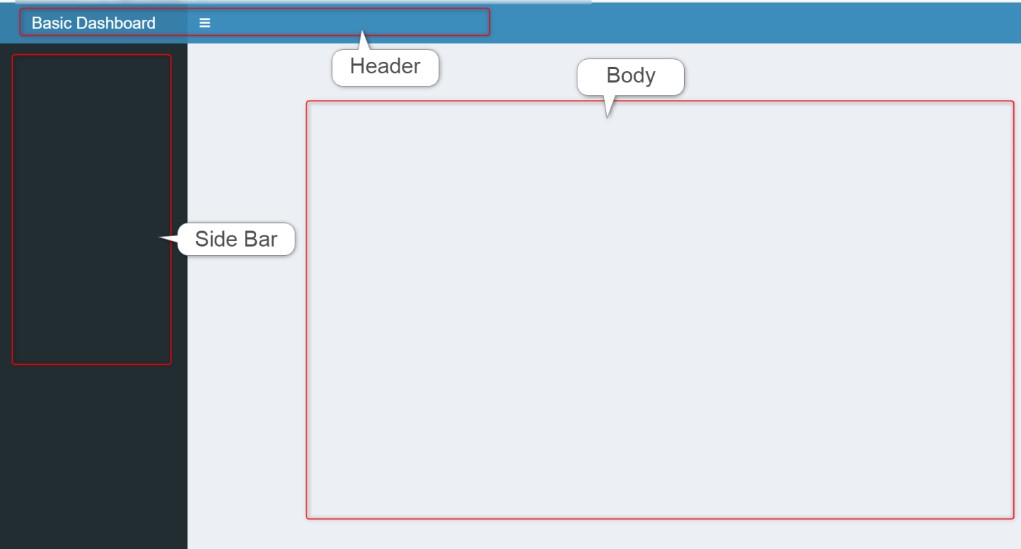
An empty shinydashboard

Code
library(shiny) 
library(shinydashboard)   
header <- dashboardHeader(title = "Basic Dashboard", titleWidth = 400)  
sidebar <- dashboardSidebar()  
body <- dashboardBody()  
ui<-dashboardPage(header,sidebar,body) 
server <- function(input, output) {} 
shinyApp(ui, server)  

Dashboard Header dashboardHeader

  • The dashboard header, created with dashboardHeader, is a visual element in shinydashboard’s layout.
    • by default coloured blue.
  • we can change the color with argument skin = "green" in side the dashboardPage(), i.e., dashboardPage(skin = "green", header, sidebar, body)
  1. Adjust Title Width in dashboardHeader: The titleWidth argument in dashboardHeader allows customization of the title section’s width.
    • A higher value provides more space for longer titles.
  2. Disabling the Header: To hide the header, use dashboardHeader(disable = TRUE).
    • This can be useful for minimalistic designs or specific use cases where the header is not required.

Dashboard Sidebar sidebarMenu()

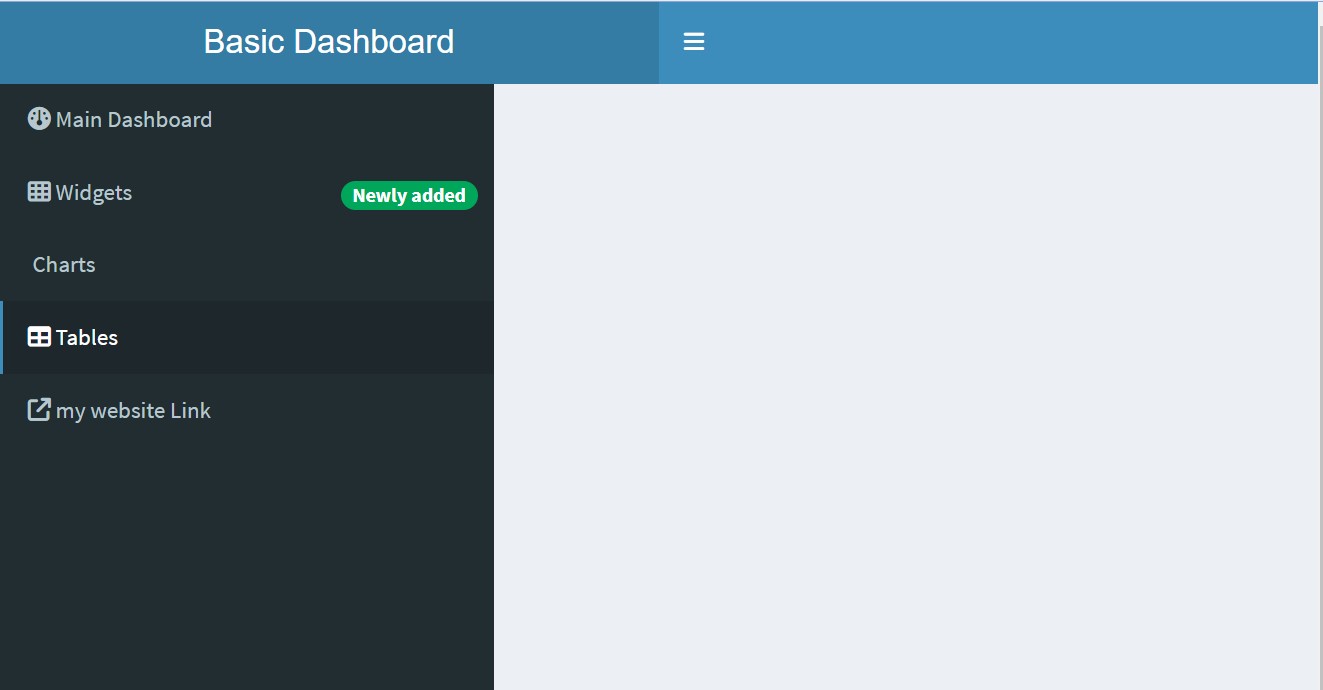
  • The sidebar usually contains a sidebarMenu(), which needs a unique ID and a list of menu items.

  • Each menuItem() consists of the title, a tabName that will be used to refer to the tab later, and an icon. There are a list of the available free icons at fontawesome.

  • Each menuItem can correspond to different content displayed in the main body of the dashboard.

  • Its width can also be adjusted to be in line with the header width.

  • We can also disable the sidebarMenu if it’s unwanted, by setting specifying: dashboardSidebar(disable = TRUE)

Key Features of Sidebar:

  • Function: sidebarMenu() within dashboardSidebar() organizes your navigation tabs.

  • Navigation Tabs: Use menuItem() within sidebarMenu() to create tabs similar to tabPanel in Shiny.

  • Content Linking: Each menuItem() in sidebarMenu() corresponds to a tabItem() in the body.

    • Ensure their tabName attributes match for proper content display.
  • Icons: Use icon() within menuItem() for visual representation.

  • Badges: Add badgeLabel and badgeColor to highlight or categorize menu items.

    • Note: Badges cannot be added to a tab containing subtabs.
  • External Links: Include href in menuItem() for external URLs.

  • Control tab opening behaviour with the newtab argument.

    • By default, external links open in a new browser tab
Code
sidebar <- dashboardSidebar(width = 300, 
                   sidebarMenu(
    menuItem("Main Dashboard", tabName = "dashboard", icon = icon("dashboard")),
    menuItem("Widgets", tabName = "widgets", icon = icon("th"),
                     badgeLabel = "Newly added", badgeColor = "green"),
    menuItem("Charts", tabName = "charts", icon = icon("chart")),
    menuItem("Tables", tabName = "tables", icon = icon("table")),
    menuItem("my website Link", href = "https://yebelay.rbind.io", 
                     icon = icon("external-link"))) ) 
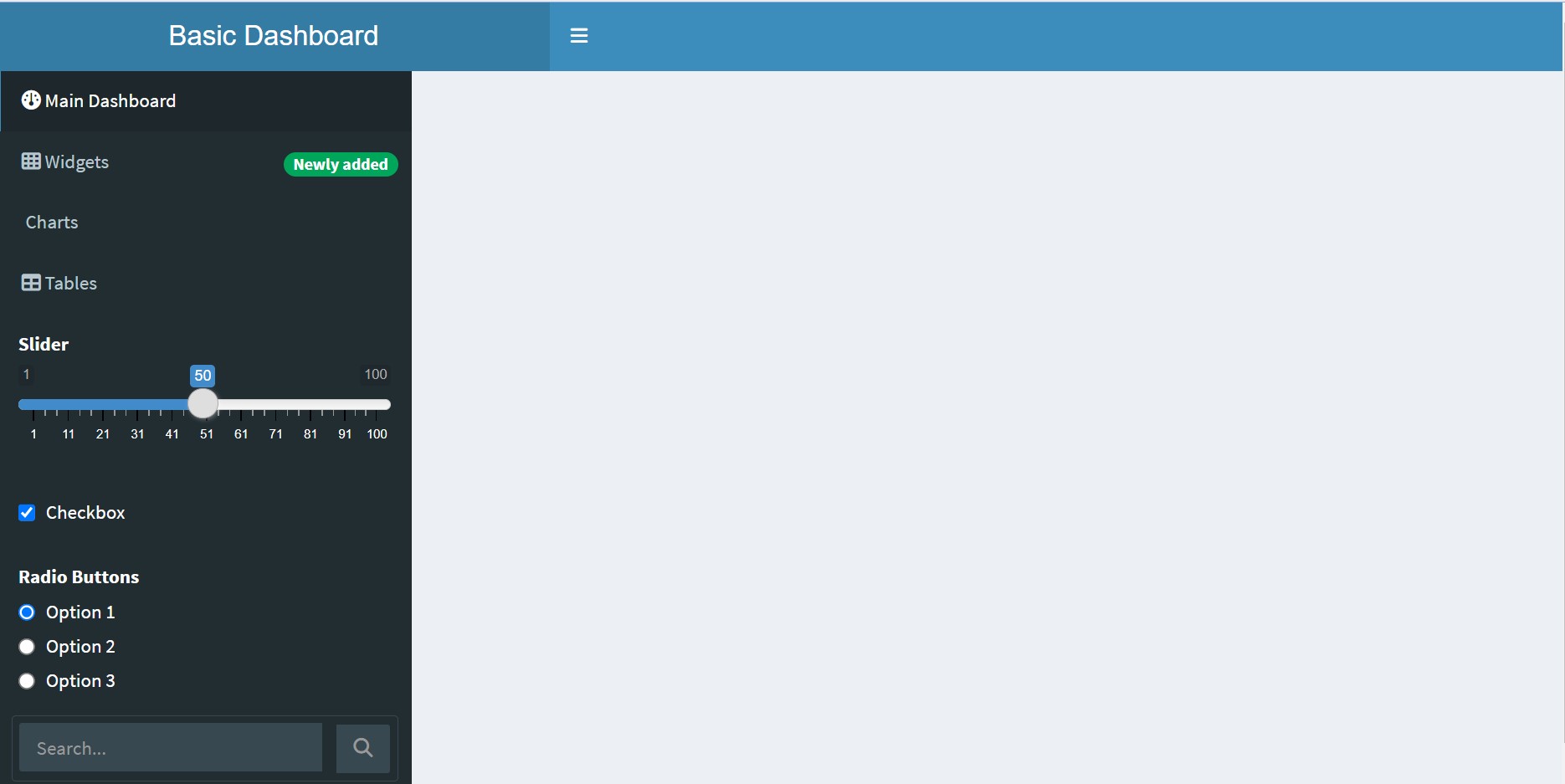
Incorporating Inputs and Interactive Elements

  • Include Shiny inputs like sliderInput and textInput in the sidebar for user interaction.
  • Sidebar Search Form: Use sidebarSearchForm() with textId and buttonId.
    • Server-Side Correspondence: Access input values in the server function using input$searchText and input$searchButton.
Code
sidebar <- dashboardSidebar(width = 300, sidebarMenu(
    menuItem("Main Dashboard", tabName = "dashboard", icon = icon("dashboard")),
    menuItem("Widgets", tabName = "widgets", icon = icon("th"), 
                     badgeLabel = "Newly added", badgeColor = "green"), 
    menuItem("Charts", tabName = "charts", icon = icon("chart")),
    menuItem("Tables", tabName = "tables",icon = icon("table")),
    sliderInput("slider", "Slider", min = 1, max = 100, value = 50),
    checkboxInput("checkbox", "Checkbox", value = TRUE),
    radioButtons("radio", "Radio Buttons",
                             choices = c("Option 1", "Option 2", "Option 3")),
    sidebarSearchForm(textId = "search", buttonId = "searchButton", 
                                        label = "Search..."))) 

Dashboard Body dashboardBody()

  • The main part of the app goes inside dashboardBody().

  • It’s the area to displays outputs and accommodate user inputs.

  • The tabName has to match the name you used in the sidebar menuItem(), so that tab shows when the user clicks on the corresponding menu item.

Body Structure

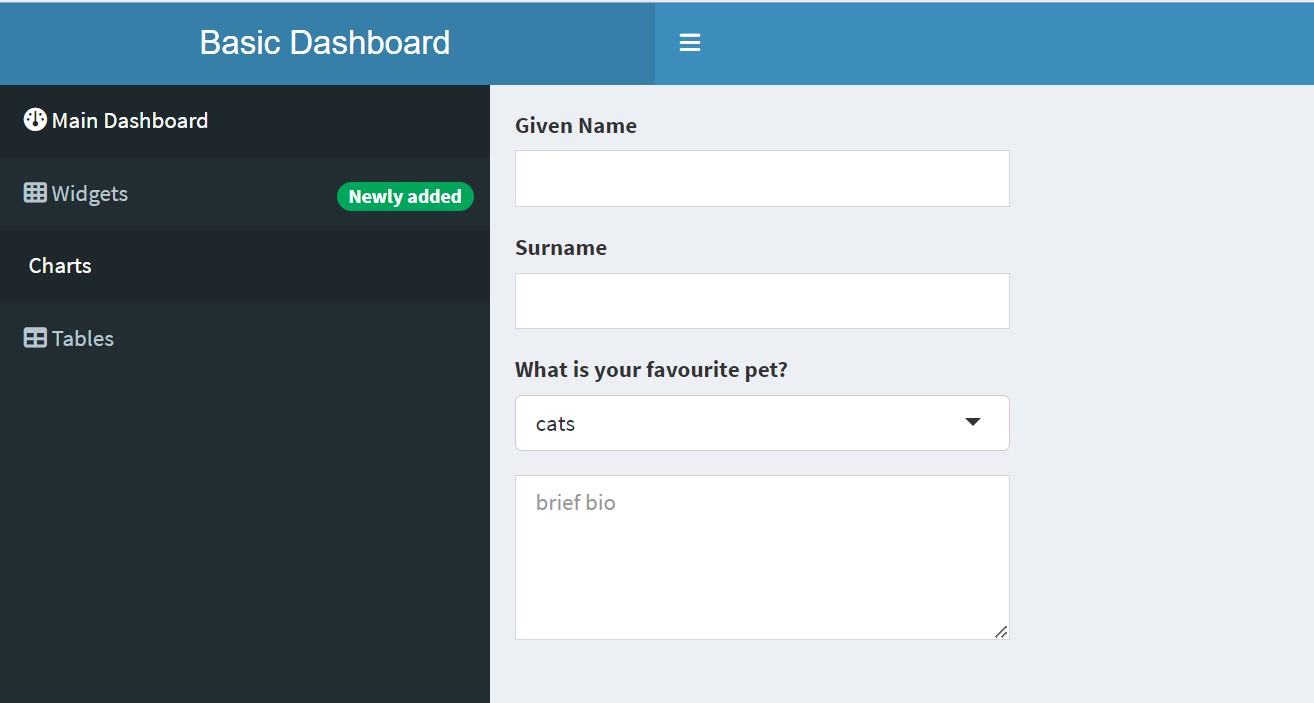
  • Tab items can be structured in several ways. At the simplest, you can just list each element after the tabName.
Code
tabItem(tabName = "dashboard",   
textInput("given", "Given Name"), 
textInput("surname", "Surname"),
selectInput("pet", "What is your favourite pet?",
                    c("cats", "dogs", "ferrets")),
textAreaInput("bio", NULL, height = "100px", 
    placeholder = "brief bio") )

Boxes

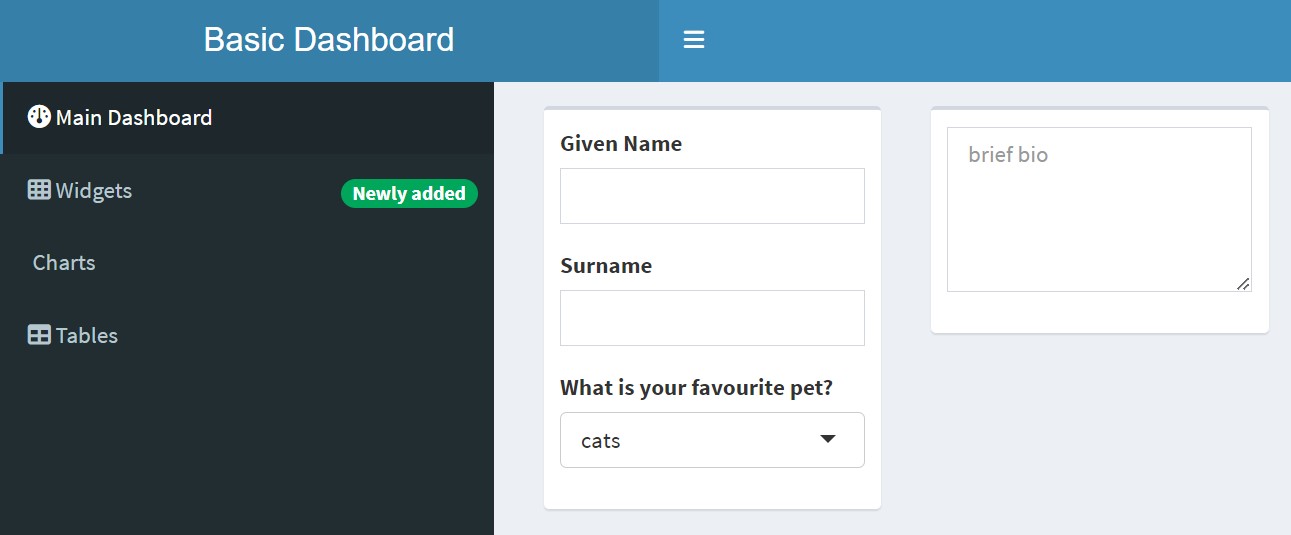
Most shinydashboard apps organise the parts inside boxes.
Code
tabItem(tabName = "dashboard", 
                box(textInput("given", "Given Name"),
                        textInput("surname", "Surname"),
                        selectInput("pet", "What is your favourite pet?",
                                                c("cats", "dogs", "ferrets"))),
                box(textAreaInput("bio", NULL, height = "100px",
                                                    placeholder = "brief bio")))
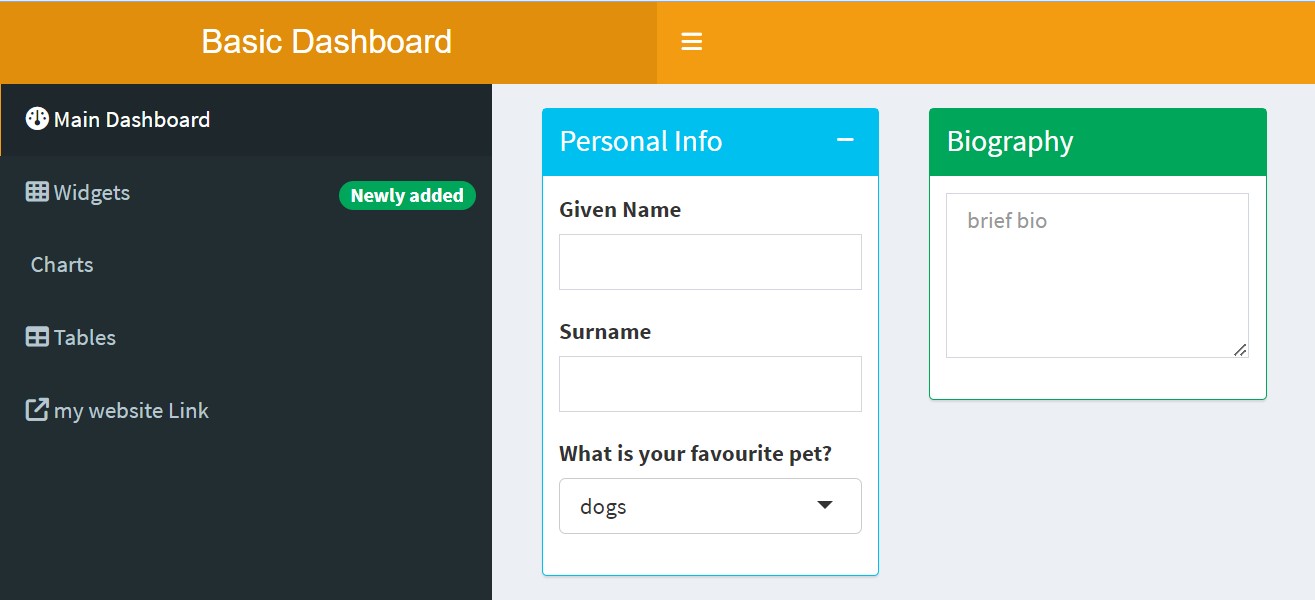
  • You can add titles to the boxes, make them collapsible and/or give them solid headers.
Code
tabItem(tabName = "dashboard",
                box(title = "Personal Info", collapsible = TRUE, 
                        textInput("given", "Given Name"),
                        textInput("surname", "Surname"),
                        selectInput("pet", "What is your favourite pet?",
                                                c("cats", "dogs", "ferrets"))),
                box(title = "Biography", solidHeader = TRUE,
                        textAreaInput("bio", NULL, height = "100px", 
                                                    placeholder = "brief bio")))

Info and Value Boxes

  • You can use an infoBox() or a valueBox() to highlight a small amount of information.

  • The default background is aqua, but the basic template changes this to the skin colour.

  • However, you can customise this by setting the color argument.

Code
tabItem(tabName = "dashboard",
                infoBox("Default InfoBox", "Value", "Subtitle"), 
                valueBox("Default ValueBox", "With subtitle"),
                valueBox("No subtitle", "") )

Shinydashboard uses a grid system that is 12 units across. The default width of boxes is 6, and info and value boxes are 4.

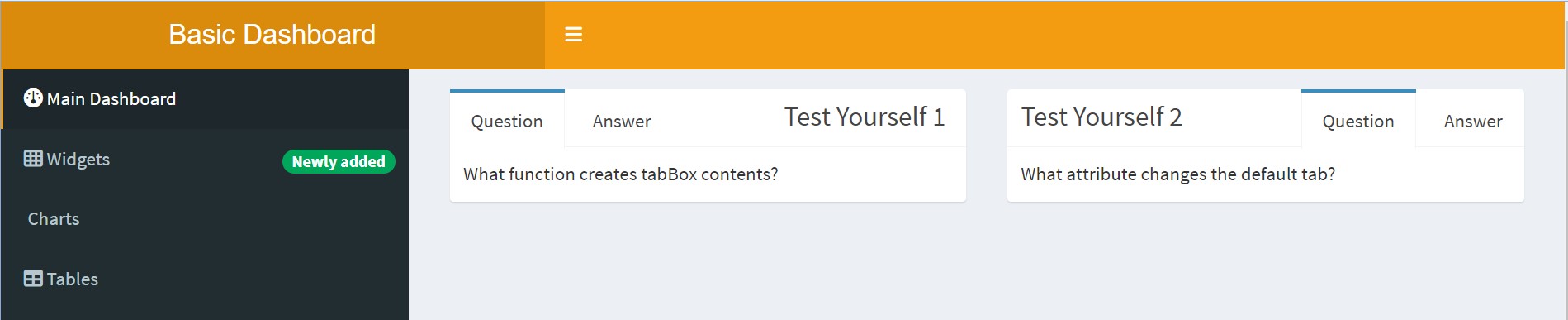
Tab Boxes

Create a box with multiple tabs using tabBox(), which contains tabPanel().

Code
tabItem(tabName = "dashboard", 
                tabBox(title = "Test Yourself 1", 
                             tabPanel("Question", "What function creates tabBox contents?"),
                             tabPanel("Answer", "tabPanel()") ), 
                tabBox(title = "Test Yourself 2",
                             side = "right", selected = "Question", 
                             tabPanel("Answer", "selected"),
                             tabPanel("Question", "What attribute changes the default tab?")) )
Row Layout

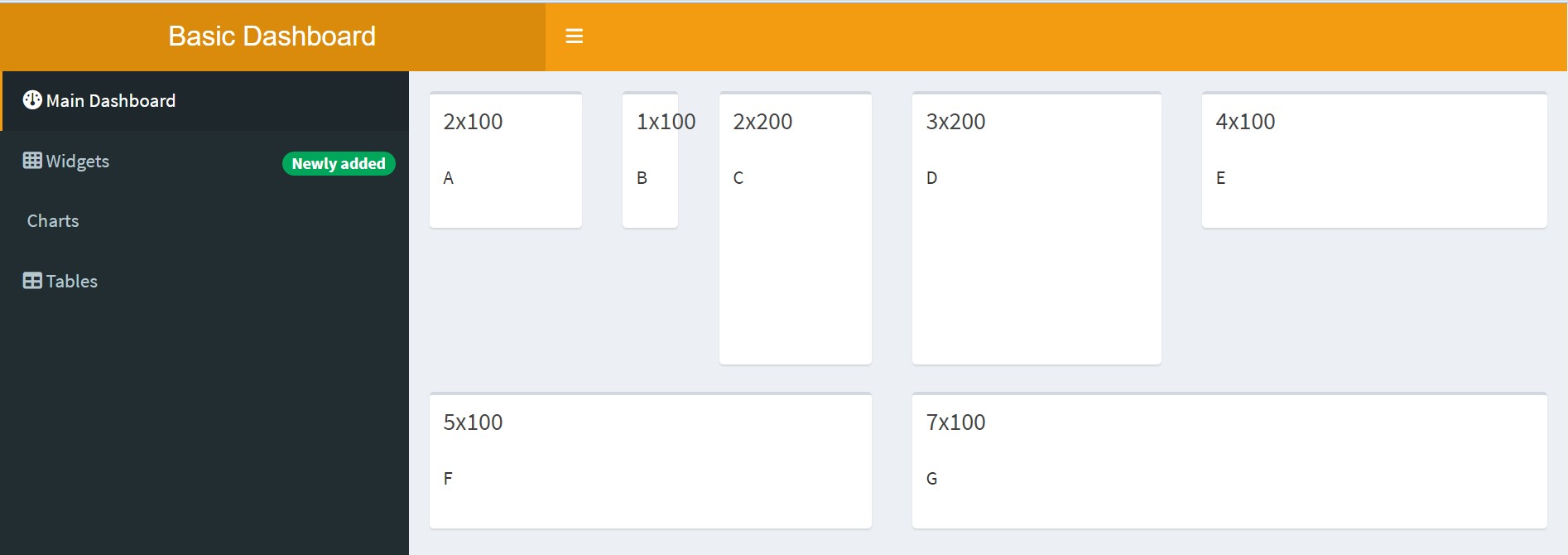
  • You can arrange the boxes inside a fluidRow().
  • Set the box height in pixels. If the window gets too narrow, the boxes will move to stack instead of be in rows.
Code
tabItem(tabName = "dashboard", 
                fluidRow(box("A", title = "2x100", width = 2, height = 100), 
                            box("B", title = "1x100", width = 1, height = 100), 
                            box("C", title = "2x200", width = 2, height = 200), 
                            box("D", title = "3x300", width = 3, height = 300),
                            box("E", title = "4x100", width = 4, height = 100),
                            box("F", title = "5x100", width = 5, height = 100),
                            box("G", title = "7x100", width = 7, height = 100)))
Column Layout

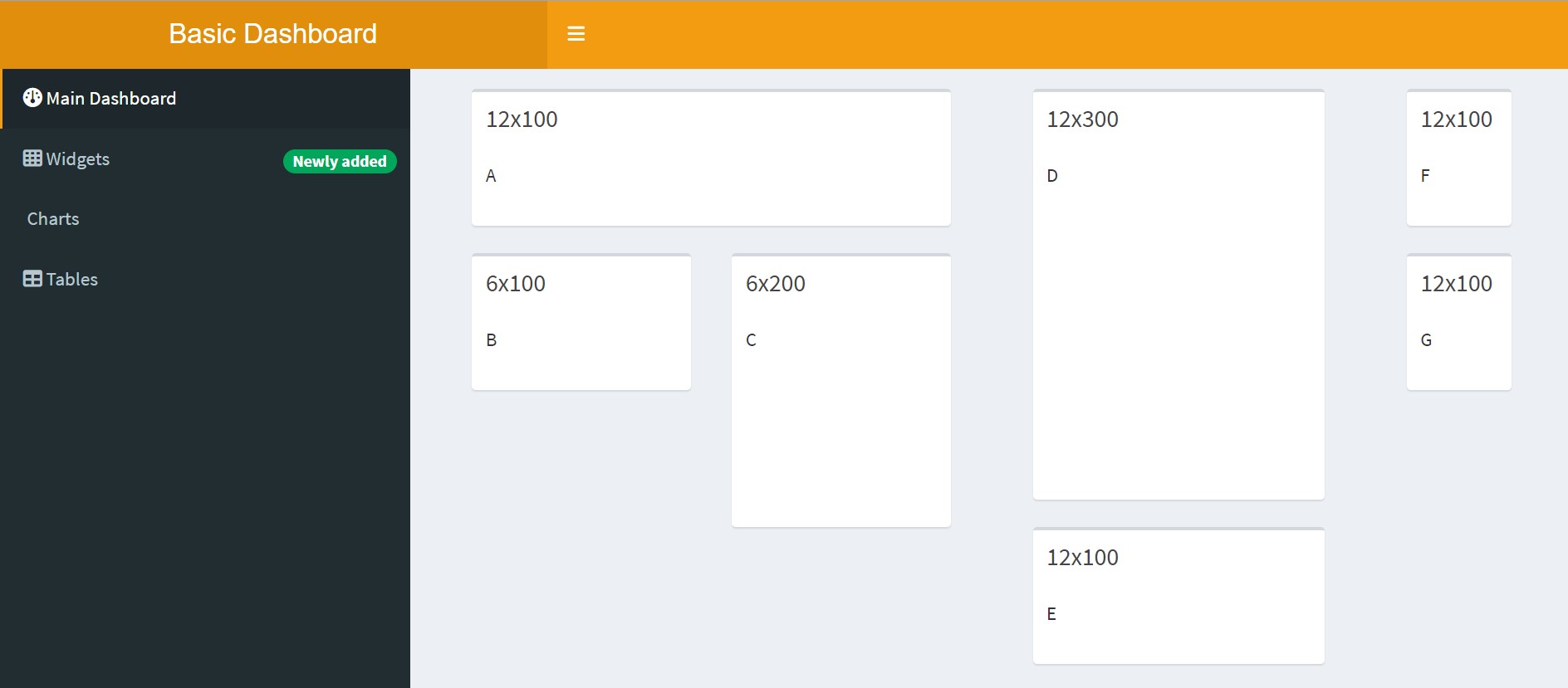
  • Alternatively, you can arrange boxes or other elements inside a column() with a specific width.
  • Elements inside this column have a width relative to the column width, so no matter what value you set the column width to, an element inside with a width of 6 will be half the column width.
Code
tabItem(tabName = "dashboard", 
                column(width = 6,
                    box("A", title = "12x100", width = 12, height = 100),
                    box("B", title = "6x100", width = 6, height = 100), 
                    box("C", title = "6x200", width = 6, height = 200)),      
                column(width = 4,
                    box("D", title = "12x300", width = 12, height = 300),
                    box("E", title = "12x100", width = 12, height = 100)),
                column(width = 2,
                    box("F", title = "12x100", width = 12, height = 100),
                    box("G", title = "12x100", width = 12, height = 100)))

Integrating Boxes as Building Blocks

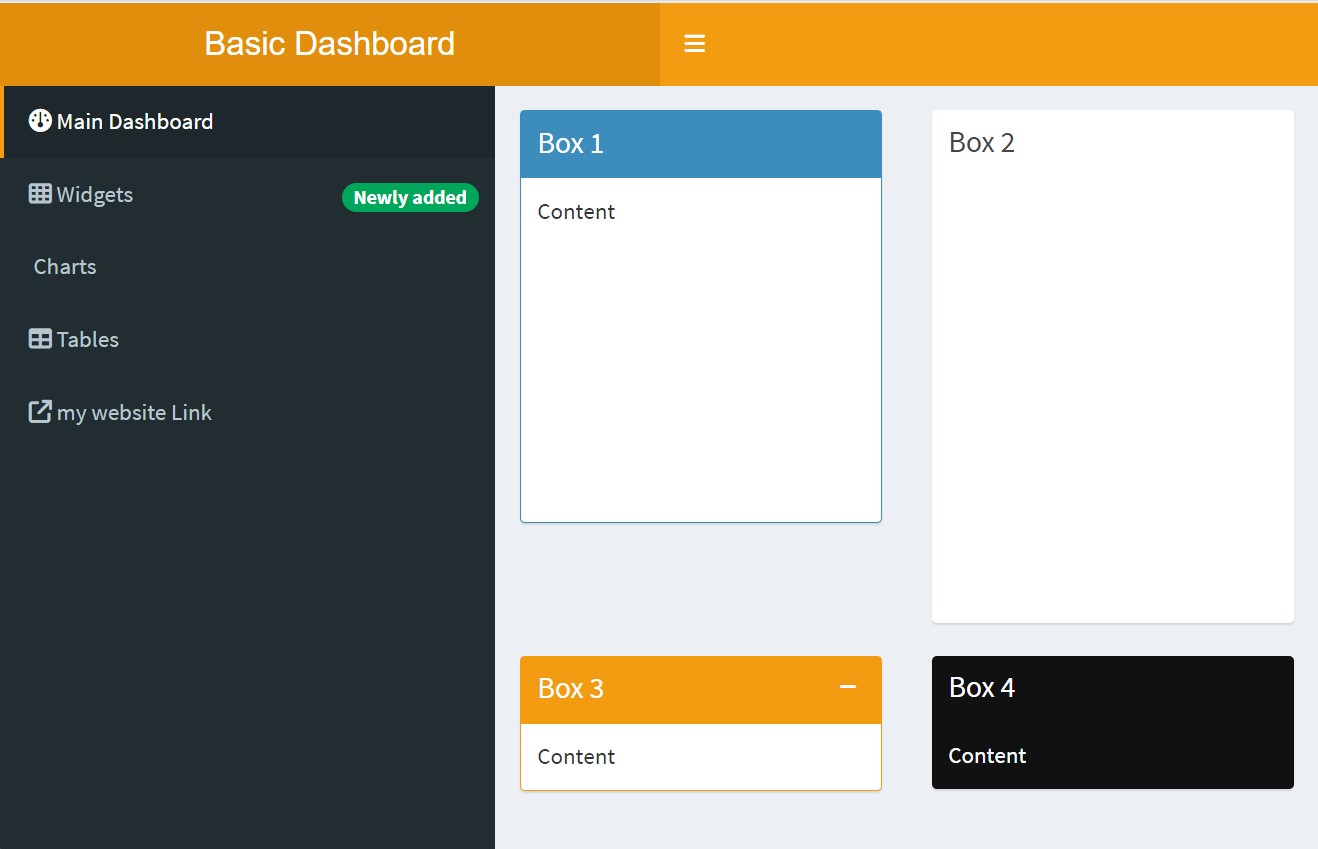
  • Boxes: Create layout elements with box(). These containers can hold various UI components.
  • Placement and Organization: Place boxes within fluidRow() for a structured layout.
  • Customization Options:
    • Titles: Use the title argument for descriptive headings.
    • Status Colors: Add colour to box headers with the status argument (e.g., “primary” for blue, “warning” for yellow).
    • Solid Headers: Set solidHeader = TRUE for a more prominent header.
  • Collapsibility: Add interactivity with collapsible = TRUE, allowing users to collapse or expand the box content.
  • Background Colors: Customize the box’s background with the background argument for a unique look.
Code
# Sample dashboardBody with various box customisations 
body = dashboardBody(fluidRow(
    box(title = "Box 1", status = "primary", "Content", solidHeader = TRUE),
    box(title = "Box 2", plotOutput("plot1", height = 250), solidHeader = TRUE),
    box(title = "Box 3", status = "warning", "Content", solidHeader = TRUE, 
            collapsible = TRUE),
    box(title = "Box 4", background = "black", "Content"))) 
Static vs Dynamic Content

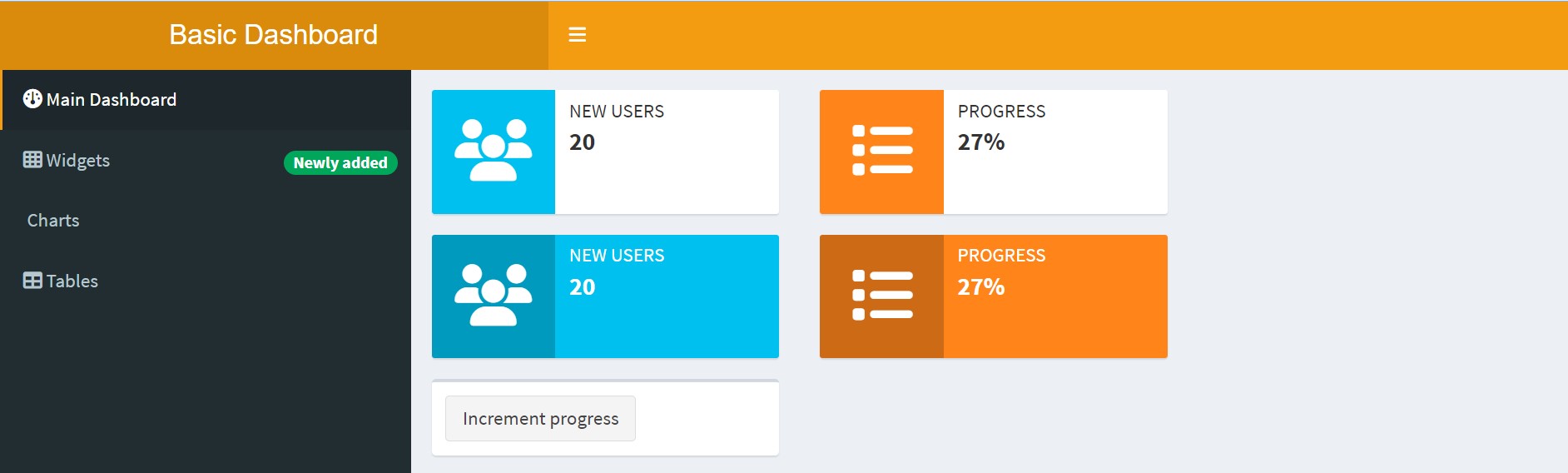
infoBox

  • infoBox is a UI component in shinydashboard designed to display key metrics, such as numerical or textual values, along with icons for visual emphasis.

  • It’s effective for showcasing statistics like user count, sales figures, or progress metrics.

  • Static infoBox displays fixed data, ideal for constants or baseline metrics.

  • Dynamic infoBox, enabled through infoBoxOutput and renderInfoBox, updates in response to user interactions or live data feeds.

Appearance Customization:

  • The fill parameter alters the background fill.
  • fill=FALSE (default) gives a cleaner look, while fill=TRUE provides a more pronounced, filled background.
Code
# Dashboard Body with infoBox examples 
body = dashboardBody(
    fluidRow(infoBox("New Users", 20, icon = icon("users")), 
                     infoBoxOutput("learningBox")),
    fluidRow(infoBox("New Users", 20, icon = icon("users"), fill = TRUE),
                     infoBoxOutput("learningBox2")), 
    fluidRow(box(width = 4, actionButton("count", "Increment progress")))) 

server <- function(input, output) {output$learningBox <- renderInfoBox({
        infoBox("Progress", paste0(25 + input$count, "%"), icon = icon("list"), 
                        color = "orange")})   
    output$learningBox2 <- renderInfoBox({
        infoBox("Progress", paste0(25 + input$count, "%"), 
                        icon = icon("list"), color = "orange", fill = TRUE)})} 

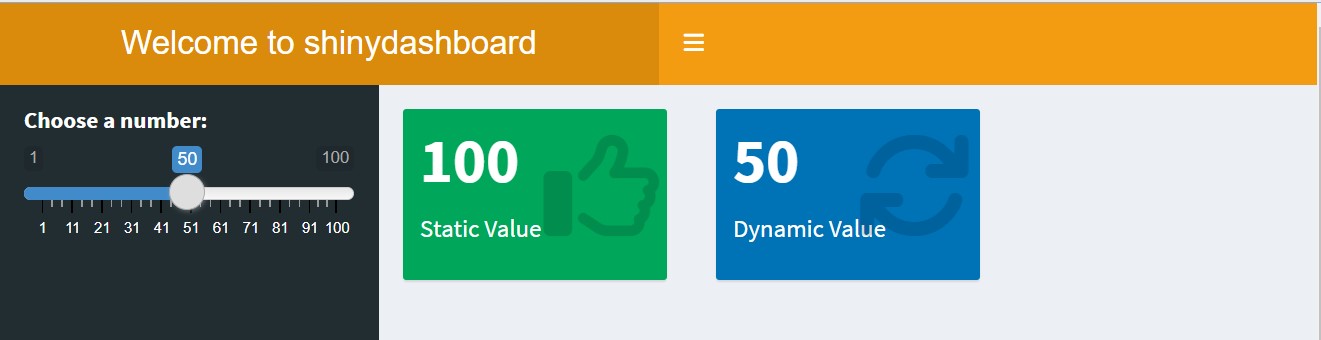
valueBox

  • valueBox, while similar in purpose to infoBox, offers a different aesthetic. It’s another way to present figures or indicators visually.

Usage and Customization:

  • valueBox can be static or dynamic, suitable for various data presentation needs.
  • Like infoBox, valueBox supports the fill parameter for background customisation.
Code
sidebar <- dashboardSidebar(
    sliderInput("number", "Choose a number:", min= 1, max = 100, value = 50)) 
body <- dashboardBody(
    fluidRow(valueBox(100, "Static Value",icon = icon("thumbs-up"), 
                    color = "green"), valueBoxOutput("dynamicValueBox")))  

server <- function(input, output) {
    output$dynamicValueBox <- renderValueBox({
        valueBox(input$number, "Dynamic Value", icon = icon("refresh"), 
                         color = "blue")}) } 

Types of Inputs in shinydashboard

  • Inputs are ways that users can communicate information to the Shiny app.

1.Free text

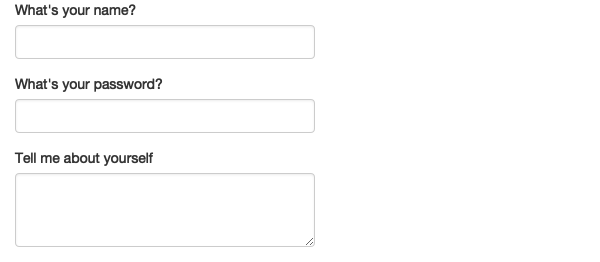
Collect small amounts of text with textInput(), passwords with passwordInput(), and paragraphs of text with textAreaInput().
Code
  textInput("name", "What's your name?"),
  passwordInput("password", "What's your password?"),
  textAreaInput("story", "Tell me about yourself", rows = 3)

Numeric inputs

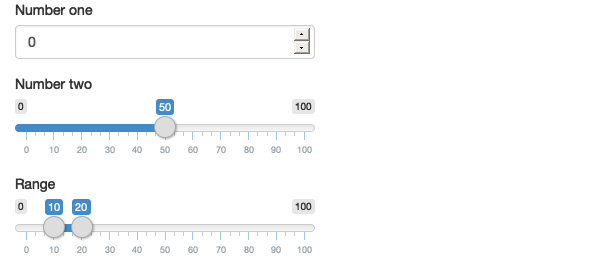
To collect numeric values, create a constrained text box with numericInput() or a slider with sliderInput(). If you supply a length-2 numeric vector for the default value of sliderInput(), you get a “range” slider with two ends.
Code
numericInput("num", "Number one", value = 0, min = 0, max = 100)
  sliderInput("num2", "Number two", value = 50, min = 0, max = 100)
  sliderInput("rng", "Range", value = c(10, 20), min = 0, max = 100)

3. selectInput

  • selectInput() creates a drop-down menu.
  • Set the first choice to "" to default to NA.
Code
demo_select <- selectInput("demo_select",label = "Do you like Shiny?",
             choices = list("","Yes, I do" = "y", "No, I don't" = "n"),
             selected = NULL, width = "100%")
  • If you set multiple to TRUE, you can also make a select where users can choose multiple options.
Code
genders <- list( "Non-binary" = "nb", "Male" = "m", "Female" = "f", 
                                 "Agender" = "a", "Gender Fluid" = "gf" )  
    demo_select_multi <- selectInput("demo_select2",
                            label = "Gender (select all that apply)",
                            choices = genders, selected = NULL,
                            multiple = TRUE, selectize = FALSE, size = 5)

4. checkboxGroupInput

  • However, this interface almost always looks better with checkboxGroupInput().
Code
demo_cbgi <-   checkboxGroupInput("demo_cbgi",
                            label = "Gender (select all that apply)",
                            choices = genders)

5. checkboxInput

  • You can also make a single checkbox with checkboxInput().
  • The value is TRUE when checked and FALSE when not.
Code
demo_cb <- checkboxInput("demo_cb",label = "I love R",value = TRUE)
  • sliderInput() allows you to choose numbers between a min and max value.
Code
demo_slider <- sliderInput("demo_slider", label = "Age", min =0,  max =100,
                     value=0,  step = 1, width = "100%")

6. radioButtons

  • If you want users to only be able to choose one option and there are a small number of short options, radioButton() is a good interface.
Code
demo_radio <- radioButtons("demo_radio", label = "Choose one",
                            choices = c("Cats", "Dogs"), 
                            selected = character(0), inline = TRUE)
  • Radio buttons default to selecting the first item unless you set selected to a choice value or character(0) to start with no selection.

7. dateInput

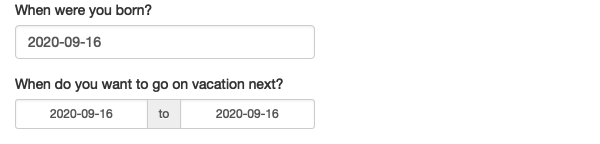
  • Collect a single day with dateInput() or a range of two days with dateRangeInput(). These provide a convenient calendar picker, and additional arguments like datesdisabled and daysofweekdisabled allow you to restrict the set of valid inputs.
Code
f(dateInput("dob", "When were you born?"),
  dateRangeInput("holiday", "When do you want to go on vacation next?"))
  • IMHO, the default of "yyyy-mm-dd" is the best because it sorts into chronological order. Don’t let me catch you storing dates like "m/d/yyyy".

8. fileInput

  • Users can upload one or more files with fileInput().
  • The argument accept lets you limit this to certain file types, but some browsers can bypass this requirement, so it’s not fool-proof.
Code
demo_file <- fileInput("demo_file",label = "Upload a data table", 
            multiple = FALSE, accept = c(".csv", ".tsv"), buttonLabel = "Upload")

Note that:

  • select inputs, checkbox groups, and radio buttons use the argument selected and not value().
  • If you want to set all the values in a checkbox group or radio button group to unchecked, set selected = character(0).

Outputs

  • Output are ways that the Shiny app can dynamically display information to the user.

  • Outputs in the UI create placeholders that are later filled by the server function.

  • Like inputs, outputs take a unique ID as their first argument: if your UI specification creates an output with ID “plot”, you’ll access it in the server function with output$plot.

  • Each output function on the front end is coupled with a render function in the back end.

  • There are three main types of output, corresponding to the three things you usually include in a report: text, tables, and plots.

  • The following sections show you the basics of the output functions on the front end, along with the corresponding render functions in the back end.

Text

Code
ui <- dasboardPage( textOutput("text"), verbatimTextOutput("code") )

server <- function(input, output) { 
    output$text <- renderText({"Hello friend!"})
output$code <- renderPrint({ summary(1:10) }) }

Plots

You can display any type of R graphic (base, ggplot2, or otherwise) with plotOutput() and renderPlot():

Code
# in ui
plotOutput("plot", width = "400px")
Code
# in the server function 
output$plot <- renderPlot({
    ggplot(iris, aes(x = Species, y = .data[[input$y]], color = Species)) +  
        geom_violin(show.legend = FALSE) + stat_summary(show.legend = FALSE) + 
        ylab(input$y) })
  • If you want to create dynamic plots that change with input, note how you need to use y = .data[[input$y]] inside aes(), instead of just y = input$y.

Images

  • imageOutput() takes the same arguments as plotOutput().
  • You can leave width and height as their defaults if you are going to set those values in the render function.
Code
# in the UI function 
imageOutput("demo_image")
  • renderImage() needs to return a named list with at least an src with the image path.
  • You can also set the width and height (numeric values are in pixels), class and alt (the alt-text for screen readers).
Code
# in the server function 
output$demo_image <- renderImage({
    list(src = "images/flower.jpg",  width = 100, height = 100, 
             alt = "A flower") }, deleteFile = FALSE)
  • The deleteFile argument is currently optional, but triggers periodic warnings that it won’t be optional in the future.

  • You should set it to TRUE if you’re making a temporary file (this stops unneeded plots using memory) and FALSE if you’re referencing a file you previously saved.

Tables

There are two options for displaying data frames in tables:

Code
ui <- dashboardPage(
    tableOutput("static"),
  dataTableOutput("dynamic")
    )
server <- function(input, output) {
      output$static <- renderTable(head(mtcars))
      output$dynamic <- renderDataTable(mtcars, options = list(pageLength = 5))
    }
  • If you have a long table to show, or one that you want users to be able to sort or search, use DT::dataTableOutput() (or its synonym DTOutput()).

  • The basic shiny package has dataTableOutput() and renderDataTable() functions, but they can be buggy.

  • The versions in the DT package are better and have many additional functions, so I use those.

Code
# in the UI function 
DT::dataTableOutput("demo_datatable", width = "50%", height = "auto")
  • The paired render function is renderDataTable() (or its synonym renderDT()).
  • You can customise data tables in many ways, but we will stick with a basic example here that limits the number of rows shown at once to 10.
Code
# in the server function 
output$demo_datatable <- DT::renderDataTable({iris }, 
                        options = list(pageLength = 10))

Dynamic HTML

  • If you want to dynamically create parts of the UI, you can use uiOutput().
Code
# in the UI function 
uiOutput("demo_ui")
  • You can create the UI using renderUI() to return HTML created.
Code
# in the server function 
output$demo_ui <- renderUI({cols <- names(iris)[1:4]   
selectInput("y", "Column to plot", cols, "Sepal.Length") })
  • The function htmlOutput() is a synonym for uiOutput(), so you might see that in some code examples, but I use uiOutput() to make the connection with renderUI() clearer, since there is no renderHTML().