Data Visualization Part 2: Advanced Charts and Visual Storytelling
Yebelay Berehan
Center for Evaluation and Development (C4ED)
2026-06-11
Roadmap for Part 2
Part 1 covered the grammar of graphics and how to customize every element of a plot. Part 2 is the chart gallery: which advanced chart to use for which question, and how to turn a correct chart into a convincing one.
Setup: packages used in this part
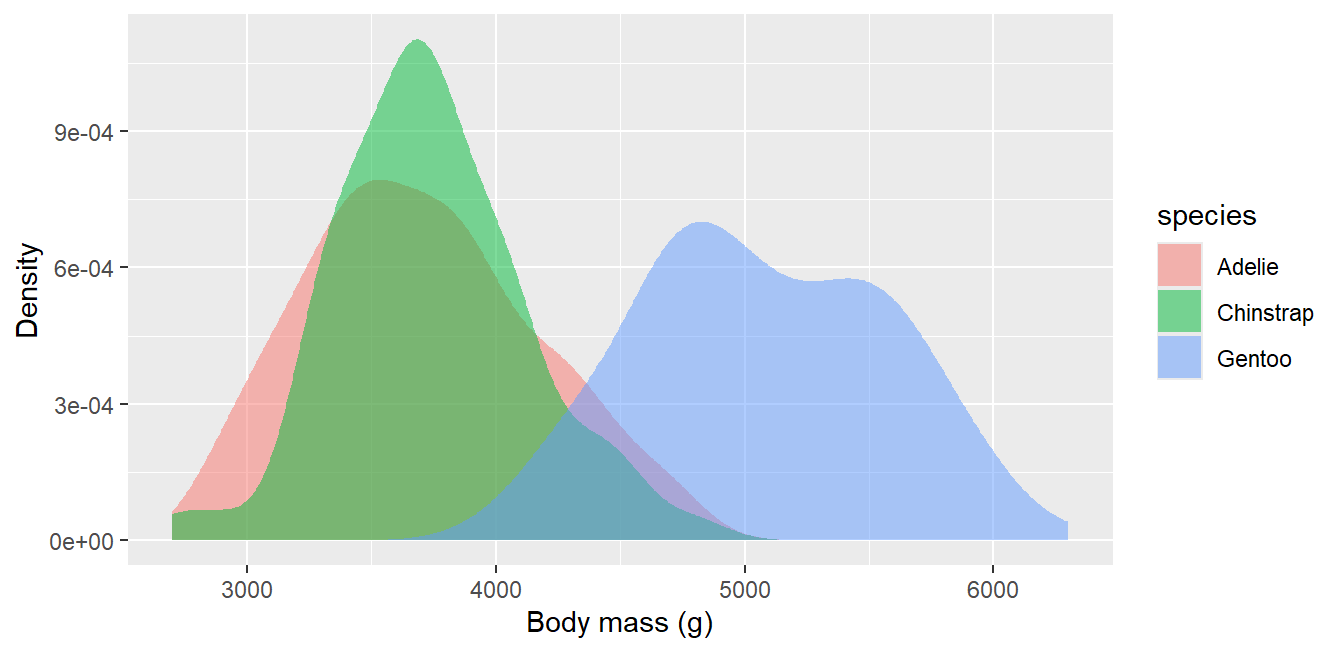
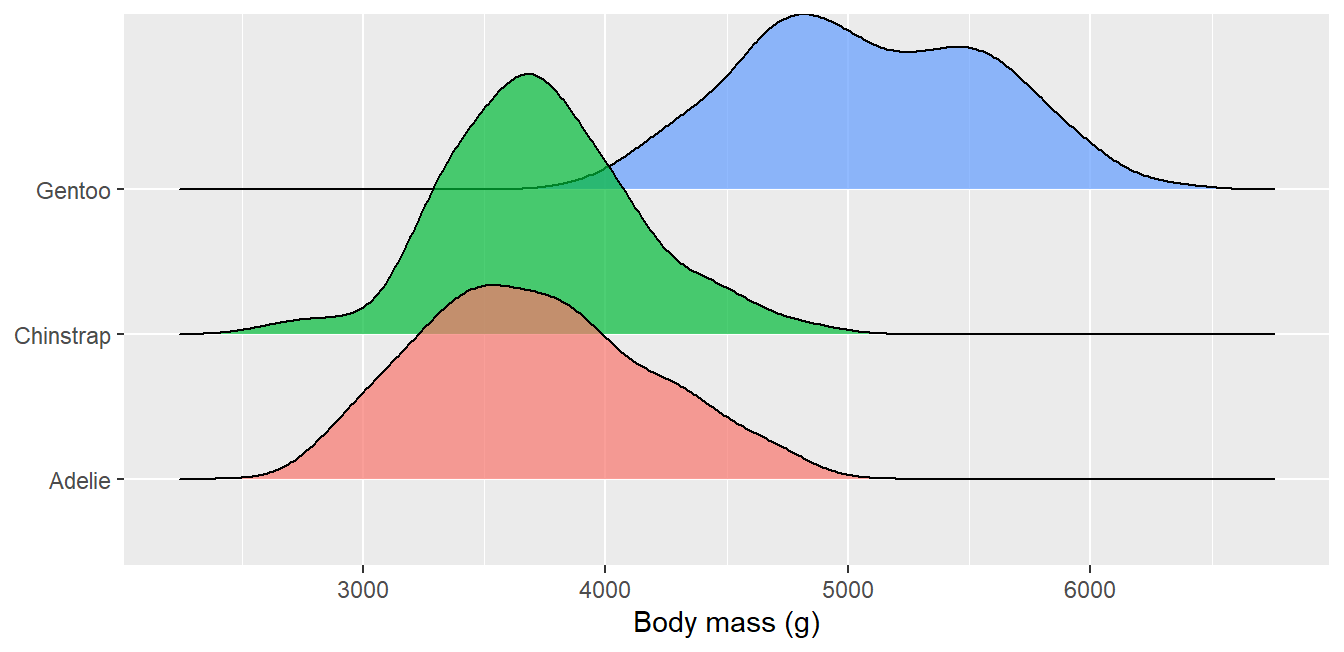
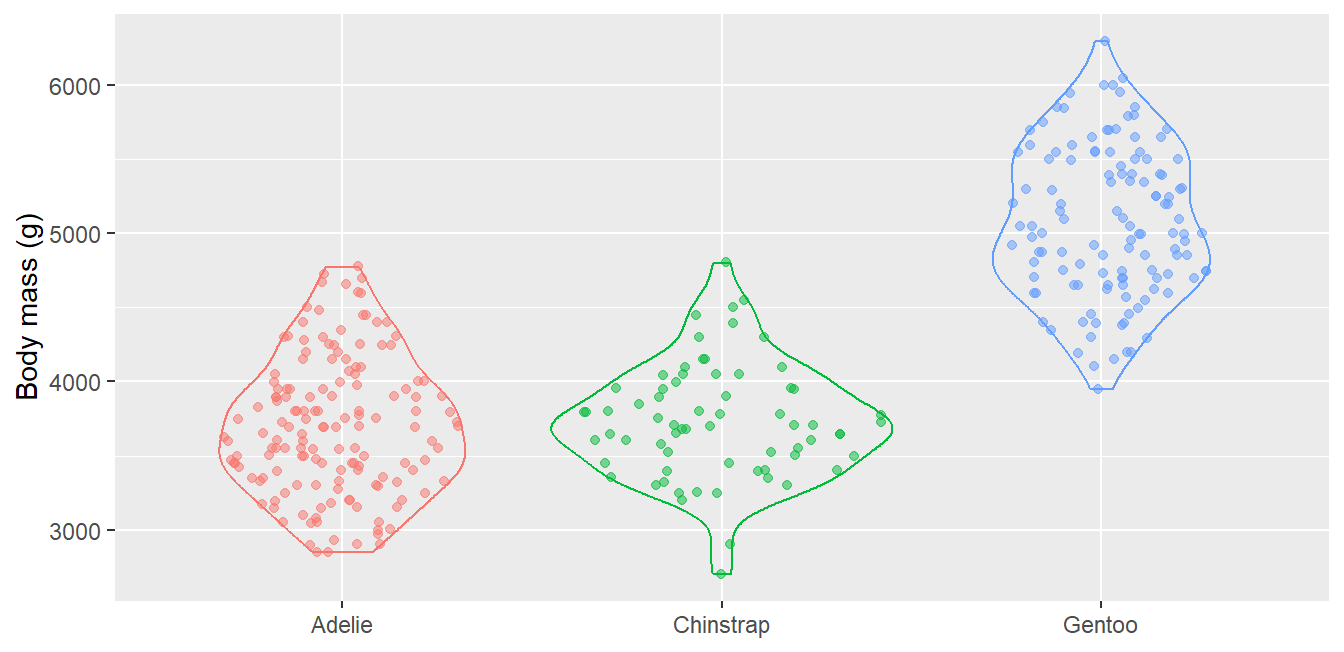
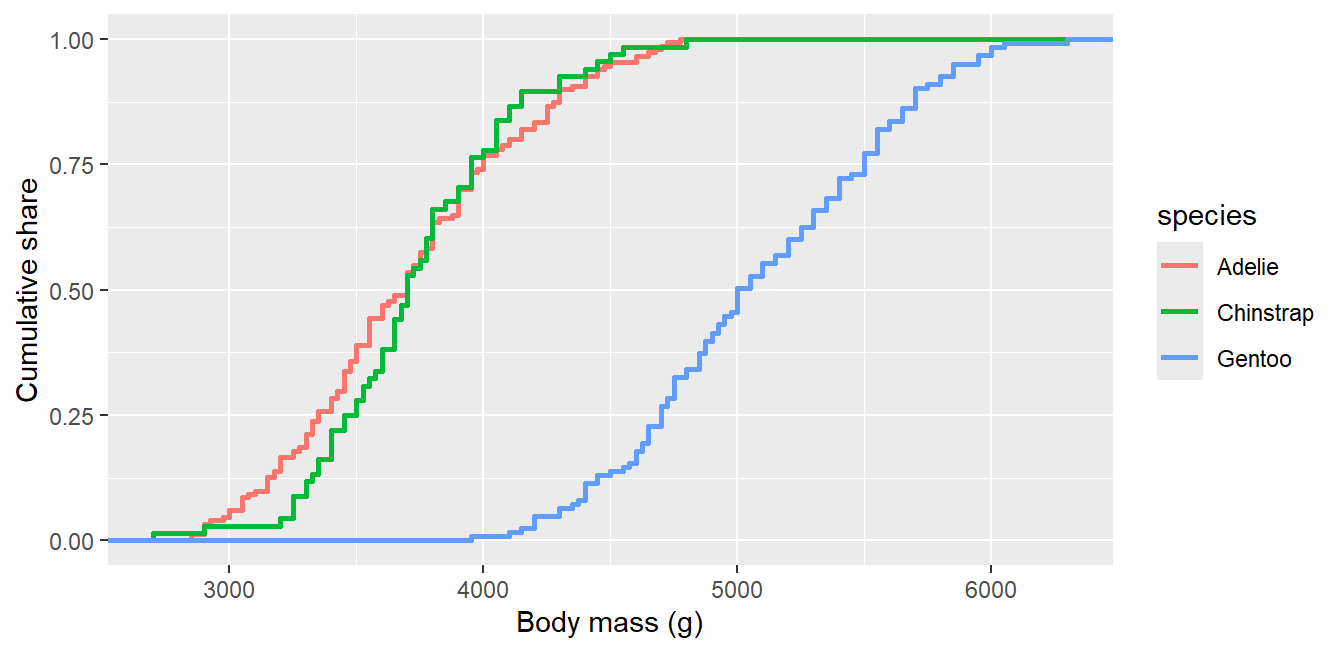
Distributions in depth: density, ridgeline, sina, ECDF
Highlighting and storytelling: focus the reader on the finding
Branding: a reusable C4ED theme and palette
Going further: maps, animation, dashboards
Setup
Most charts in this part use packages already installed for Part 1. A few extras are marked on their slides and can be installed once:
Code
# already used in Part 1install.packages(c("ggplot2", "dplyr", "tidyr", "tibble", "palmerpenguins","ggridges", "ggforce", "ggrepel", "ggtext", "patchwork"))# optional extras demonstrated in this part (marked on the slides)install.packages(c("treemapify", "waffle", "gganimate", "gifski","sf", "rnaturalearth", "rnaturalearthdata"))
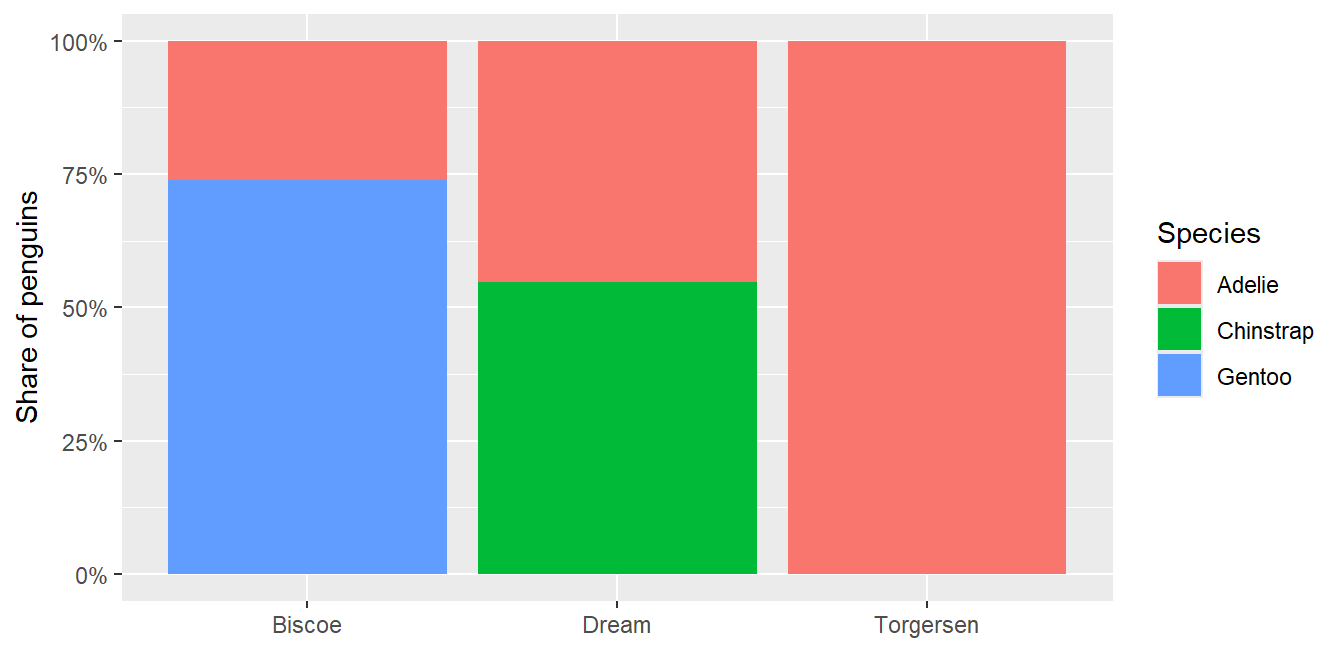
position = "fill" turns counts into shares, the most reliable composition chart:
Code
ggplot(penguins, aes(x = island, fill = species)) +geom_bar(position ="fill") +scale_y_continuous(labels = scales::percent) +labs(x =NULL, y ="Share of penguins", fill ="Species")
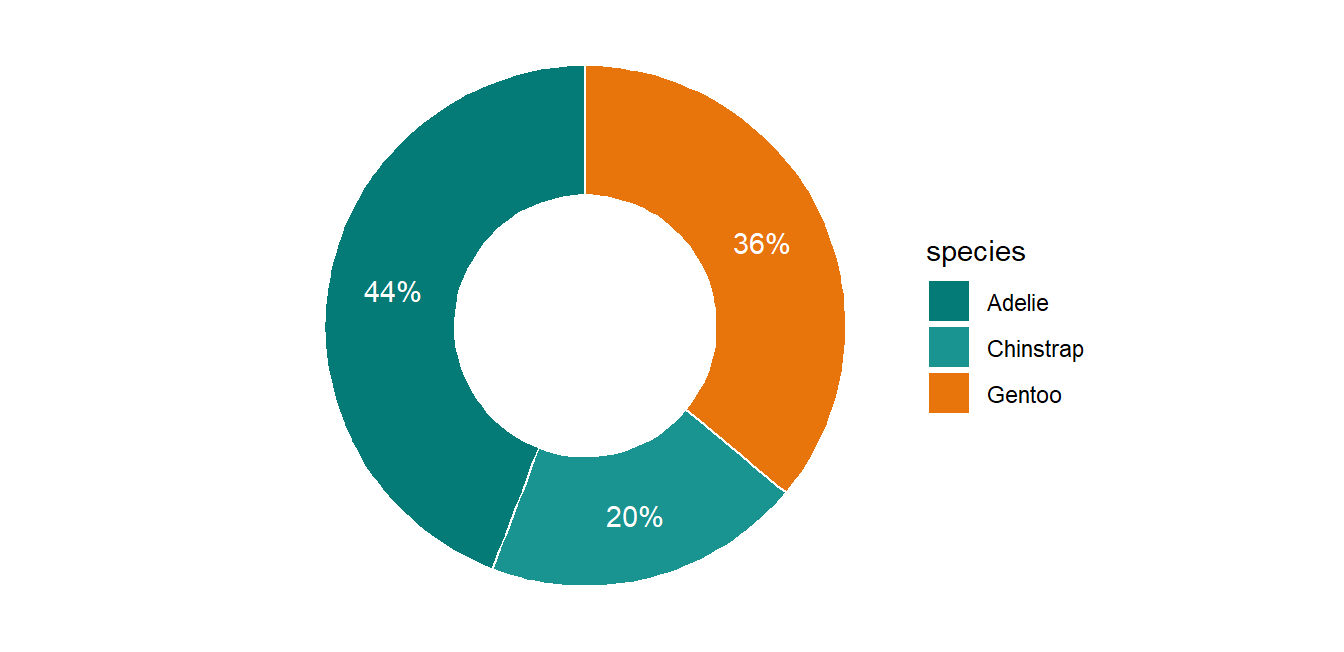
A donut is a pie with a hole; use it only for 2 to 4 categories and label the shares directly:
Code
peng_share <- penguins %>%count(species) %>%mutate(share = n /sum(n))ggplot(peng_share, aes(x =2, y = share, fill = species)) +geom_col(width =1, color ="white") +geom_text(aes(label = scales::percent(share, accuracy =1)),position =position_stack(vjust = .5), color ="white") +coord_polar(theta ="y") +xlim(0.5, 2.5) +theme_void() +scale_fill_manual(values =c("#047B77", "#1A9490", "#E8740C"))
A treemap (treemapify, optional extra) shows nested composition when there are many categories:
Code
# install.packages("treemapify")library(treemapify)penguins %>%count(island, species) %>%ggplot(aes(area = n, fill = species, label = species,subgroup = island)) +geom_treemap() +geom_treemap_subgroup_border(color ="white") +geom_treemap_text(color ="white", place ="centre") +geom_treemap_subgroup_text(color ="grey90", alpha = .5, place ="bottomleft")
A waffle chart ({waffle}, optional extra) shows shares as counted squares, intuitive for non-technical audiences:
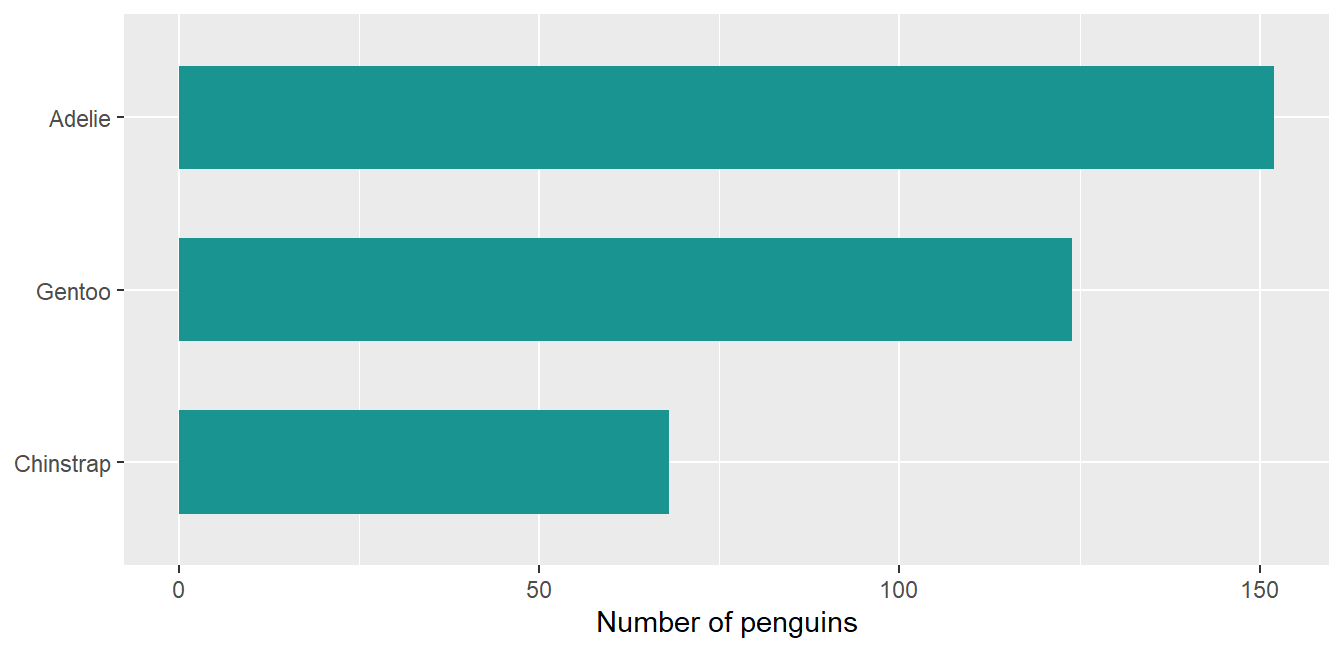
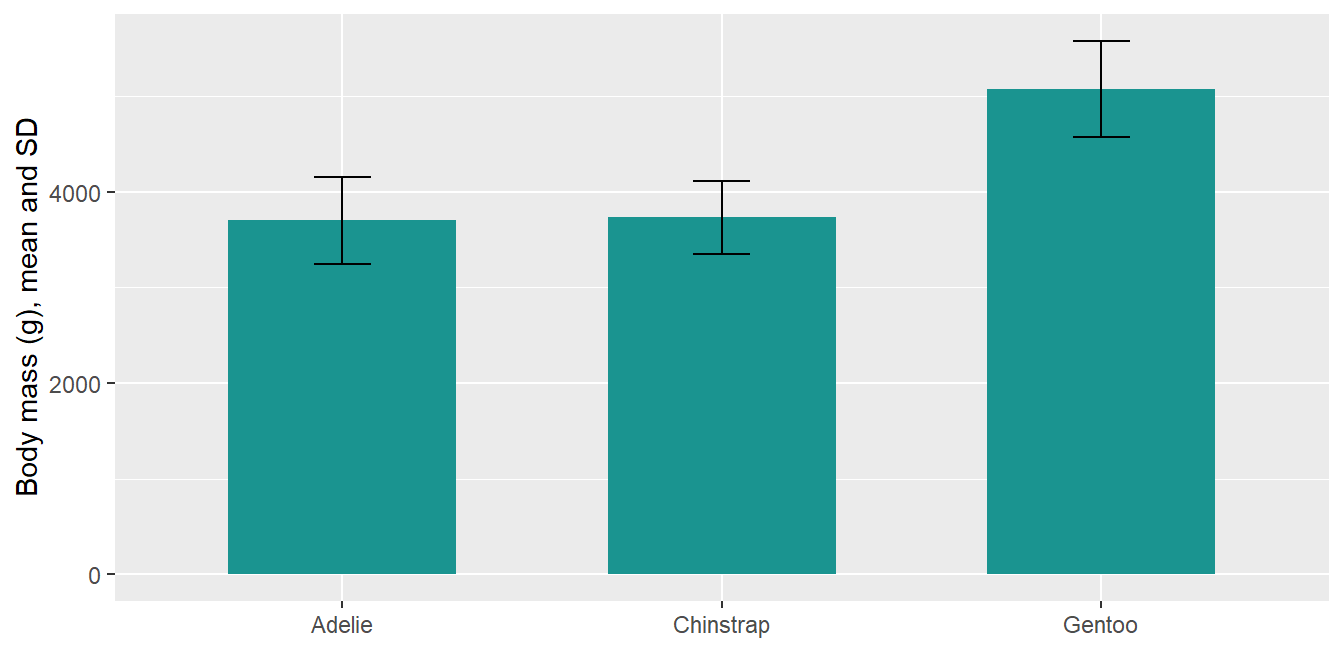
peng_sum <- penguins %>%filter(!is.na(body_mass_g)) %>%group_by(species) %>%summarize(mean =mean(body_mass_g), sd =sd(body_mass_g))ggplot(peng_sum, aes(x = species, y = mean)) +geom_col(fill ="#1A9490", width = .6) +geom_errorbar(aes(ymin = mean - sd, ymax = mean + sd), width = .15) +labs(x =NULL, y ="Body mass (g), mean and SD")
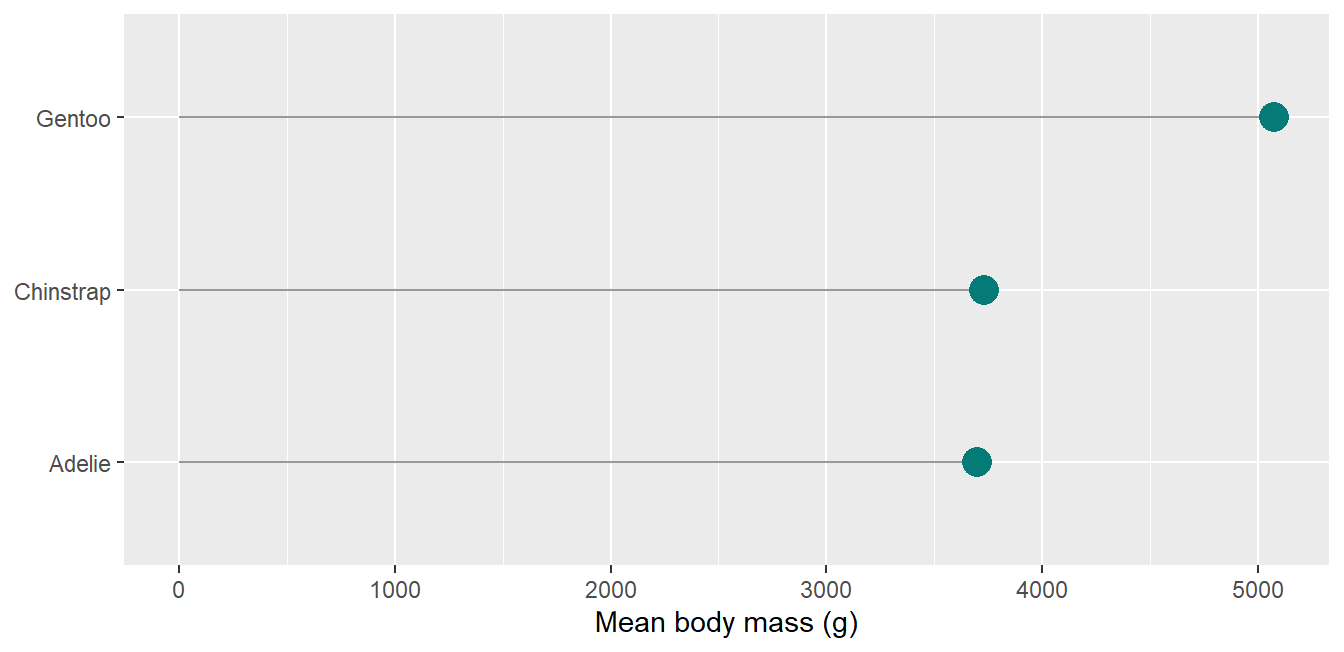
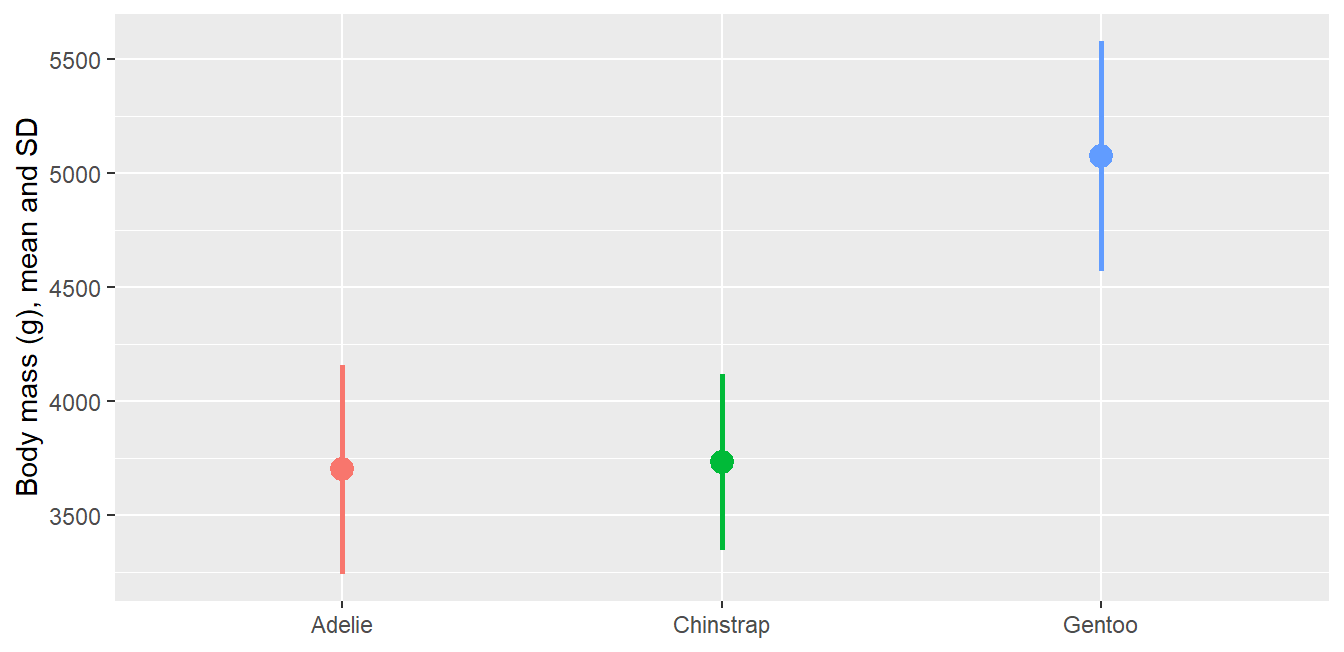
A pointrange is often clearer than bars with error bars, because the bar length itself carries no meaning for a mean:
Code
ggplot(peng_sum, aes(x = species, y = mean, color = species)) +geom_pointrange(aes(ymin = mean - sd, ymax = mean + sd),linewidth =1, size = .8) +theme(legend.position ="none") +labs(x =NULL, y ="Body mass (g), mean and SD")
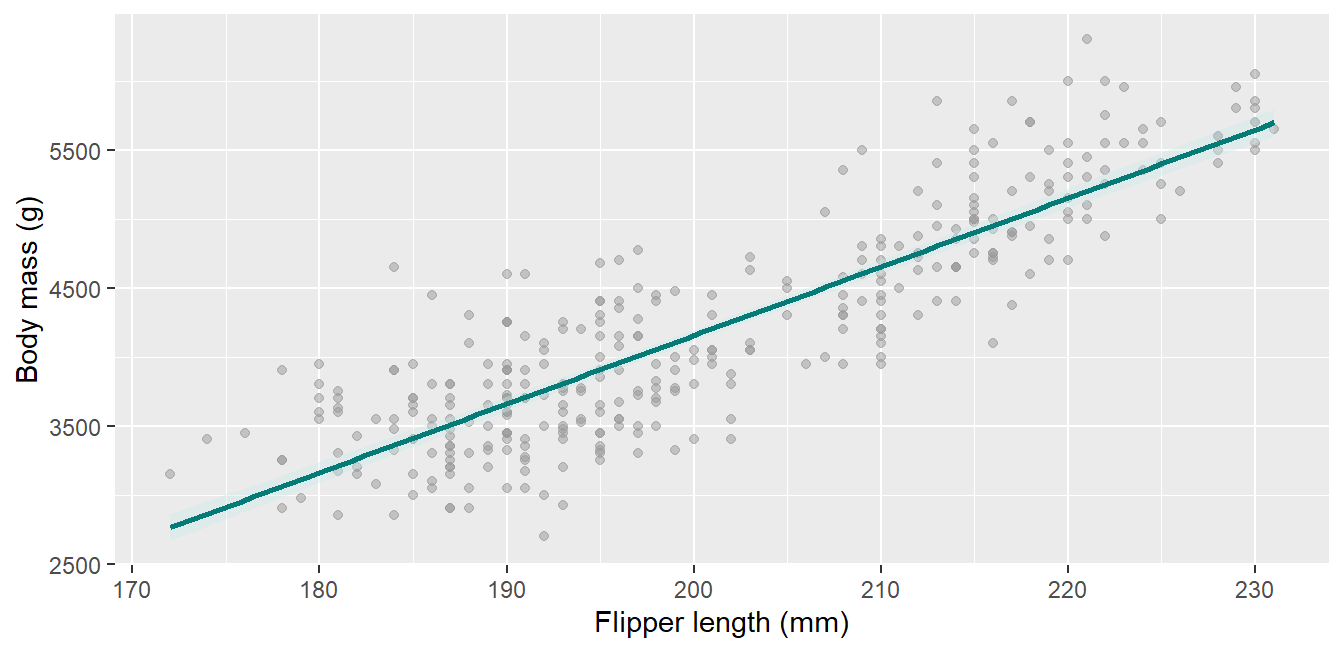
geom_smooth() draws the confidence ribbon around a fit by default; keep it visible:
Code
ggplot(penguins, aes(x = flipper_length_mm, y = body_mass_g)) +geom_point(color ="grey60", alpha = .5) +geom_smooth(method ="lm", color ="#047B77", fill ="#CDEAE8") +labs(x ="Flipper length (mm)", y ="Body mass (g)")
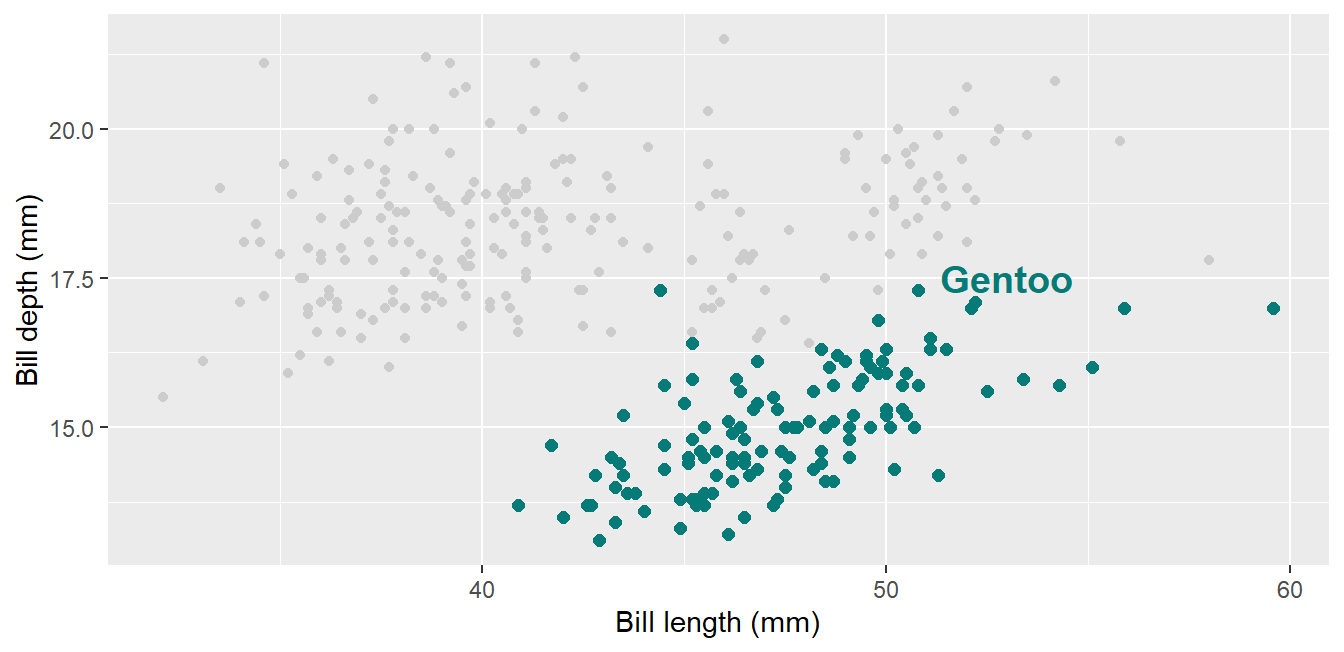
The single most effective trick in data storytelling: plot everything in grey, then add the group of interest in the accent color:
Code
ggplot(penguins, aes(x = bill_length_mm, y = bill_depth_mm)) +geom_point(color ="grey80") +geom_point(data =filter(penguins, species =="Gentoo"),color ="#047B77", size =2) +annotate("text", x =53, y =17.5, label ="Gentoo",color ="#047B77", fontface ="bold", size =5) +labs(x ="Bill length (mm)", y ="Bill depth (mm)")
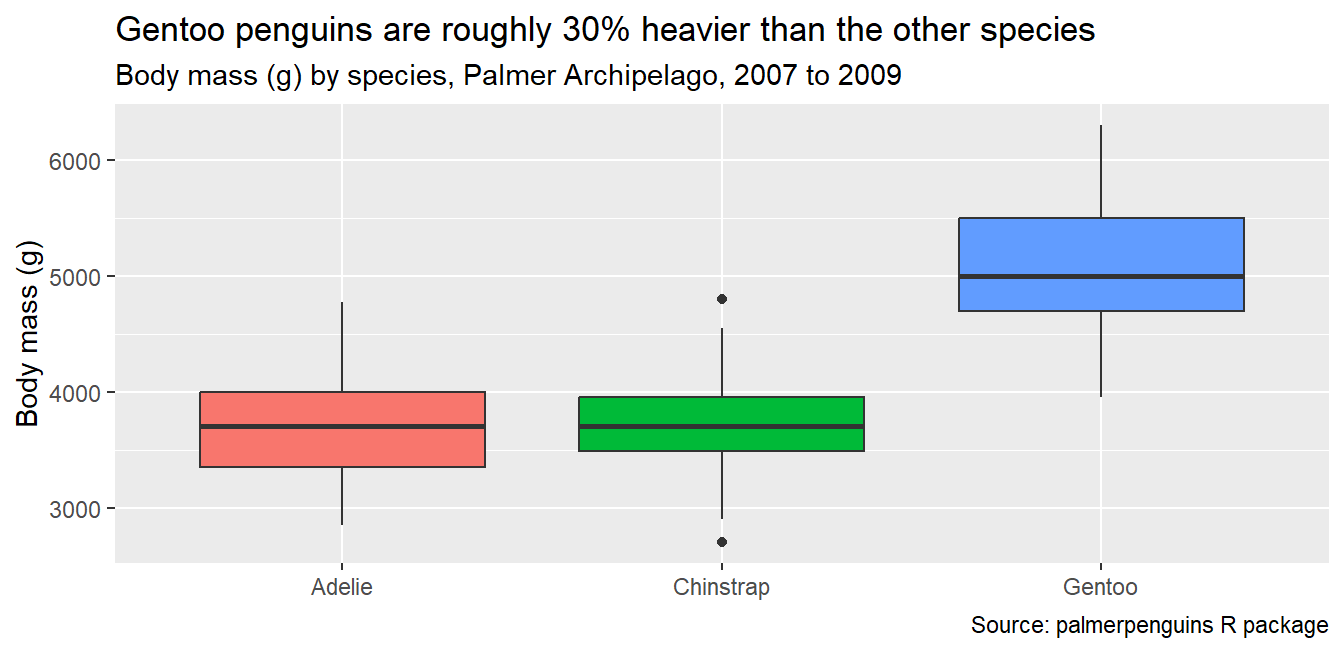
Write the takeaway in the title and keep the methodological description in the subtitle and caption:
Code
ggplot(penguins, aes(x = species, y = body_mass_g, fill = species)) +geom_boxplot() +theme(legend.position ="none") +labs(title ="Gentoo penguins are roughly 30% heavier than the other species",subtitle ="Body mass (g) by species, Palmer Archipelago, 2007 to 2009",caption ="Source: palmerpenguins R package",x =NULL, y ="Body mass (g)")
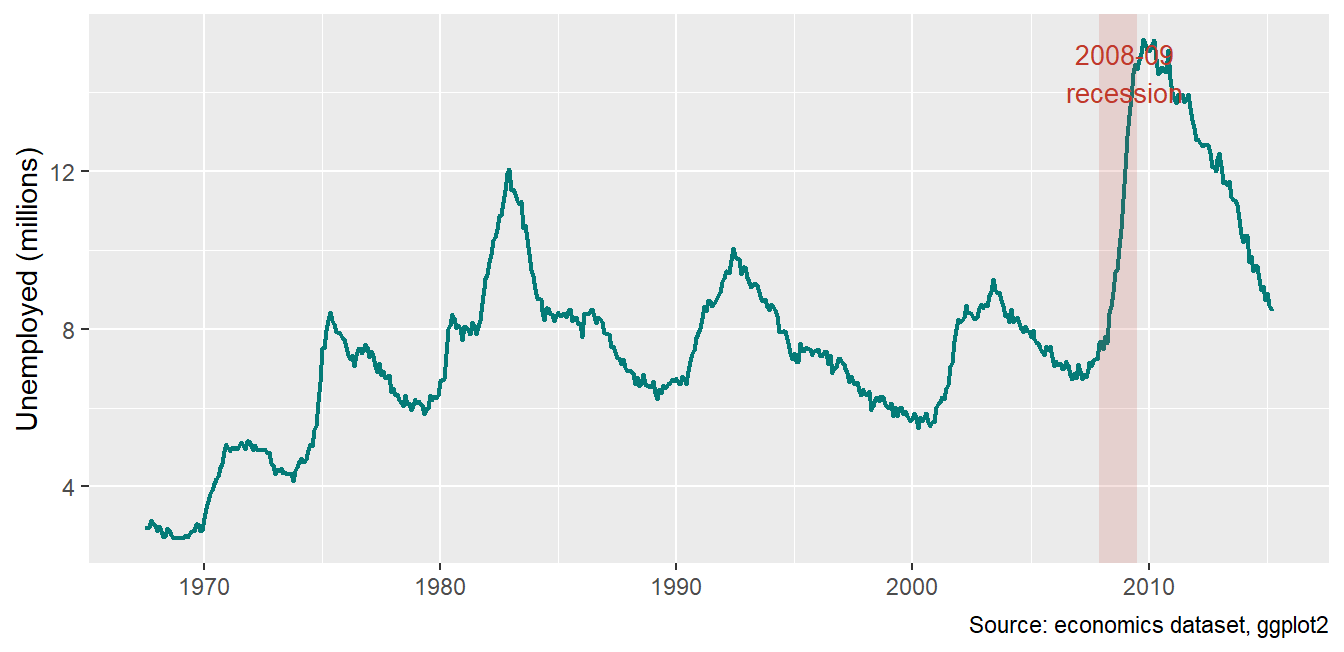
Use annotations to explain what the reader sees, right where they see it:
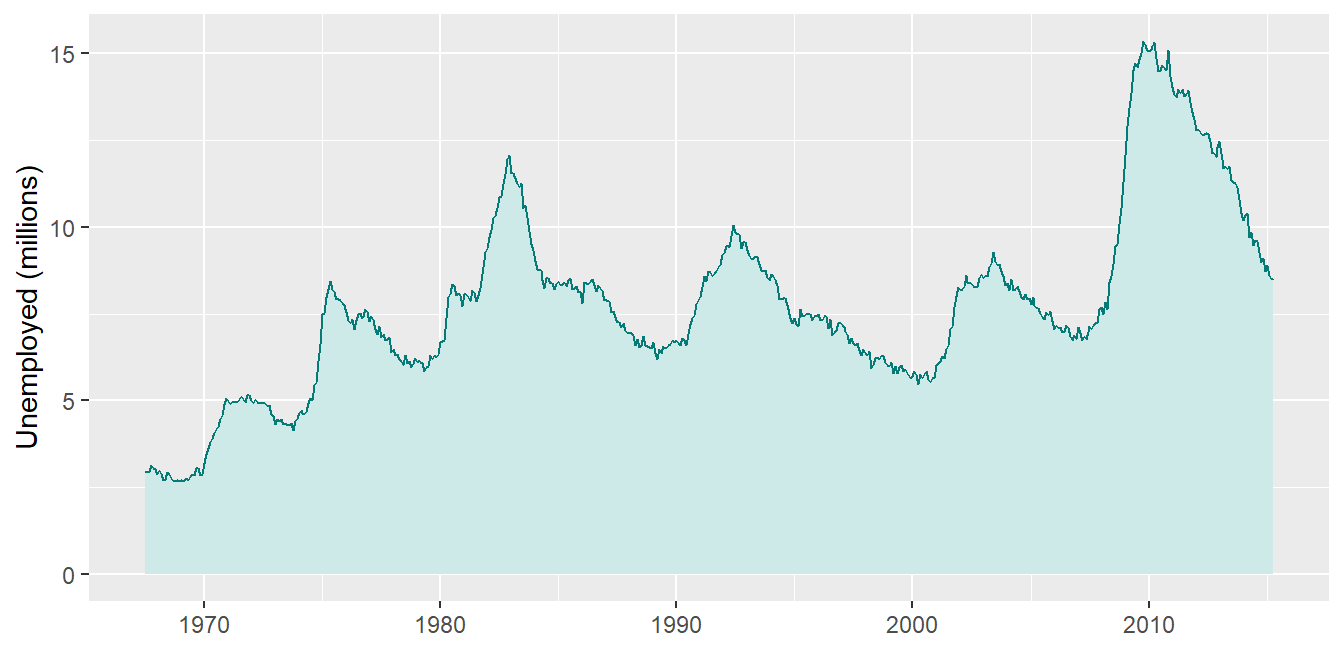
Code
ggplot(economics, aes(x = date, y = unemploy /1000)) +geom_line(color ="#047B77", linewidth = .8) +annotate("rect", xmin =as.Date("2007-12-01"), xmax =as.Date("2009-06-30"),ymin =-Inf, ymax =Inf, alpha = .15, fill ="#C0392B") +annotate("text", x =as.Date("2009-01-01"), y =14.5,label ="2008-09\nrecession", color ="#C0392B", size =3.5) +labs(x =NULL, y ="Unemployed (millions)",caption ="Source: economics dataset, ggplot2")
Save this in one .R file, source() it at the top of every script, and every figure in a report is branded and consistent by default.
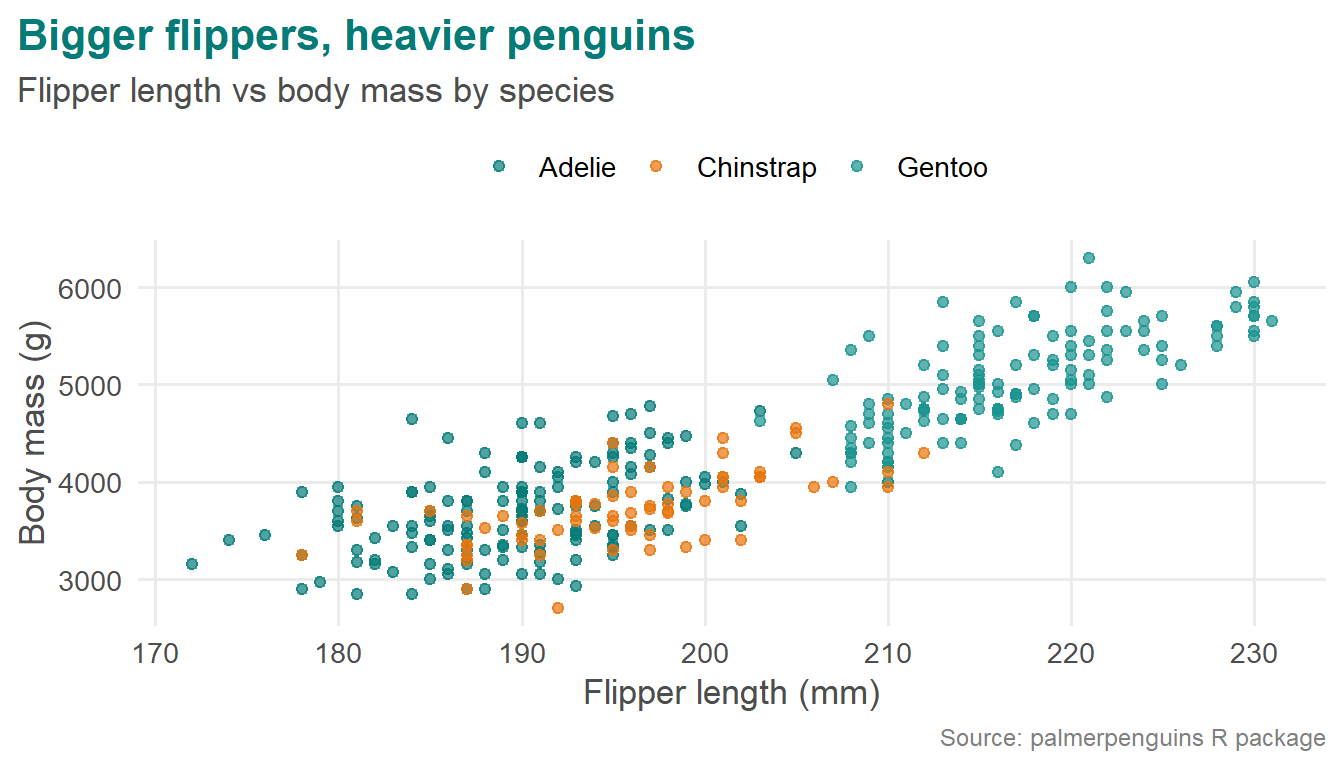
The theme in action
Code
ggplot(penguins, aes(x = flipper_length_mm, y = body_mass_g, color = species)) +geom_point(alpha = .7) +scale_color_manual(values = c4ed_colors) +theme_c4ed() +labs(title ="Bigger flippers, heavier penguins",subtitle ="Flipper length vs body mass by species",caption ="Source: palmerpenguins R package",x ="Flipper length (mm)", y ="Body mass (g)", color =NULL)
9. Going further
Maps
Choropleth and administrative-boundary maps use sf with geom_sf() (optional extras; boundary data downloads on first use):
Code
# install.packages(c("sf", "rnaturalearth", "rnaturalearthdata"))library(sf)library(rnaturalearth)eth <-ne_states(country ="Ethiopia", returnclass ="sf")ggplot(eth) +geom_sf(fill ="#CDEAE8", color ="#047B77", linewidth = .3) +theme_void() +labs(title ="Administrative regions of Ethiopia",caption ="Boundaries: Natural Earth")
Join your indicator to the boundary data by region name, then map it to fill for a choropleth.
Never map household-level GPS coordinates in outputs; aggregate to region or woreda level first.
Animation
gganimate (optional extra) turns any ggplot into an animation by adding a transition; useful for presentations, not for print:
Code
# install.packages(c("gganimate", "gifski"))library(gganimate)ggplot(economics, aes(x = date, y = unemploy /1000)) +geom_line(color ="#047B77") +labs(x =NULL, y ="Unemployed (millions)") +transition_reveal(date)
From charts to products
Quarto reports and dashboards: the same ggplot2 code embeds in .qmd reports, slides (like this deck), and format: dashboard outputs.
Shiny: wrap plots in an interactive app when users need to filter and explore themselves.